
1 Introduction
Thank you for downloading and trying the app. The purpose is to provide a tool that makes it easy for support teams (normally the devoted partner!) of someone competing in, or training for, long distance/time events, to predict arrivals at checkpoints and a finish time. To aid this support, checkpoints or stops that may have facilities can be highlighted and any other requirements, such as cutoffs, identified.
The all important timings, and contingencies, take into account the drive time between checkpoints and the expected athlete’s rest time at any of these stops. For each leg, the paces can be overwritten to take account for terrain (easier or harder) and environmental conditions, such as nighttime or weather. Actual arrival and depart times can be recorded to give a better accuracy of future timings. Using a smart algorithm a predicted arrival time is highlighted to show ahead, on track or behind expected time. This is based on the elevation gain, performance and condition of the athlete. If the athlete is predicted to miss a time cut at either a checkpoint or finish, then arrival times are highlighted in red.
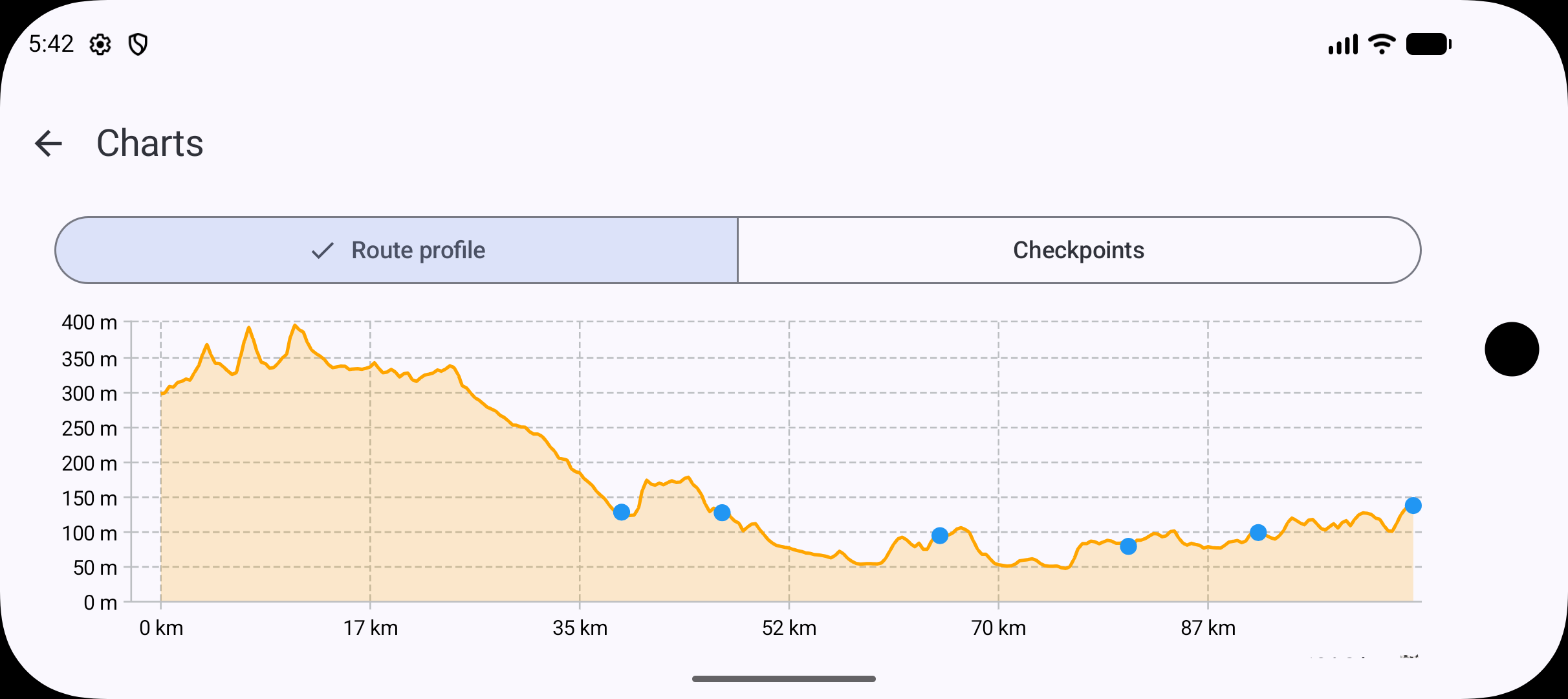
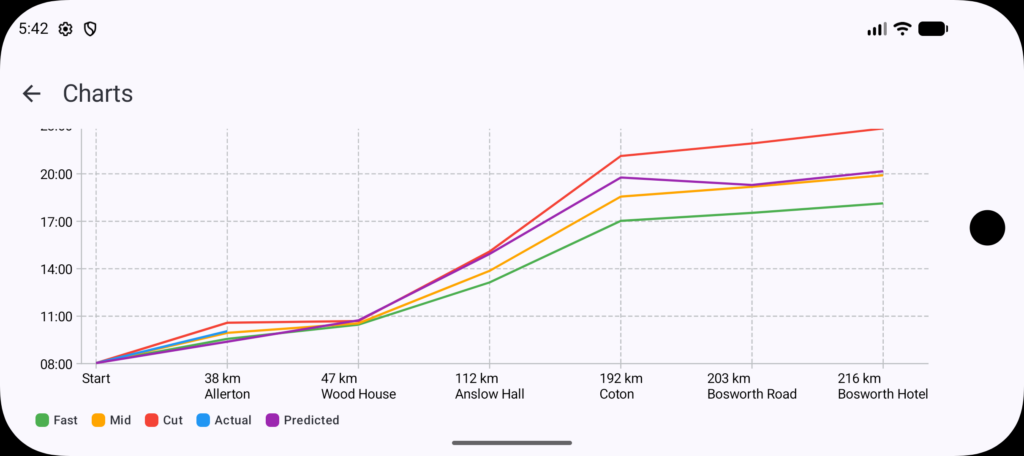
A chart is provided to highlight the altitude gained or lost between checkpoints. To provide clarity on how the athlete is actually faring against predicted timings a graph shows the spread of expected arrival times compared to the actual arrival times.
A subscription service is available, and this provides the following features:
- Creation of more than one Event,
- Events can be shared across different users. The ability to share the athletes progress allows in real time, allows for additional support teams to get update to date timings and see additional requirements as the athlete’s performance needs change,
- Detailed navigation to checkpoints using What 3 Words, and
- Weather Forecast for the Event Day, from 5 days in advance of the event.
We hope you enjoy using the app and we welcome any feedback, areas of improvement or new features.
2 Home Screen
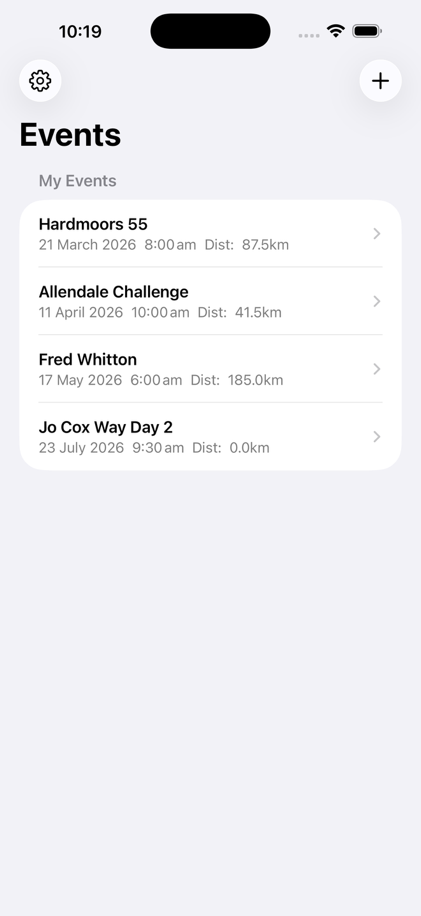
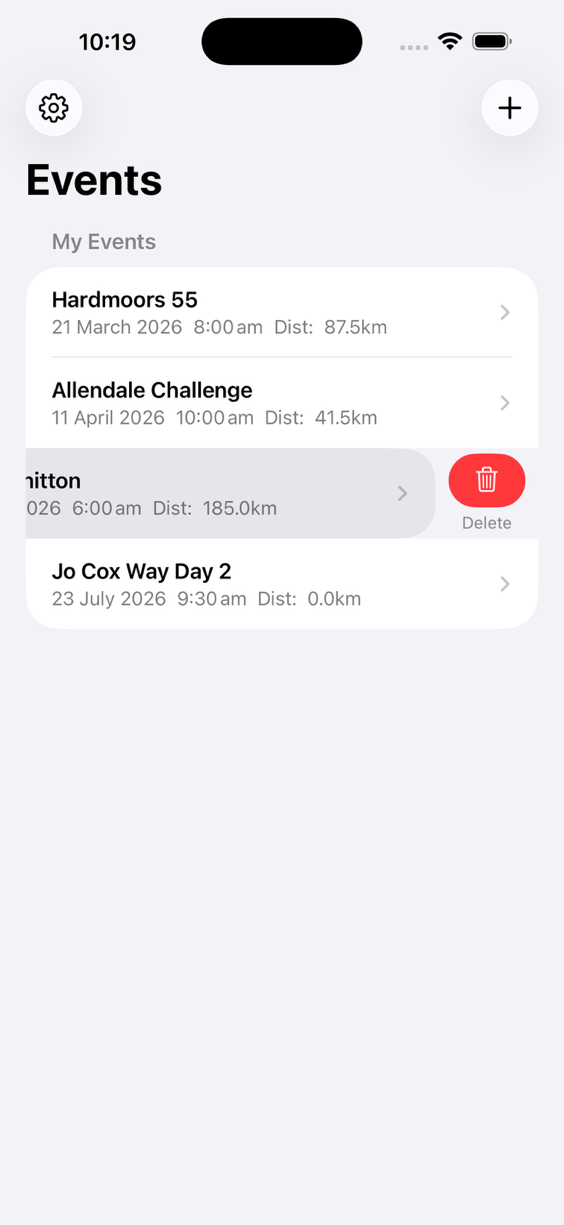
The home screen lists all the events and the user can add a new event, delete events and personalise the app and user’s settings.
2.1 Settings
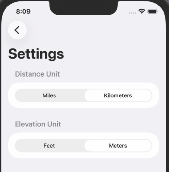
The user can select how distance and elevation is displayed in either imperial or metric and configure their user details.
2.2 User Registration
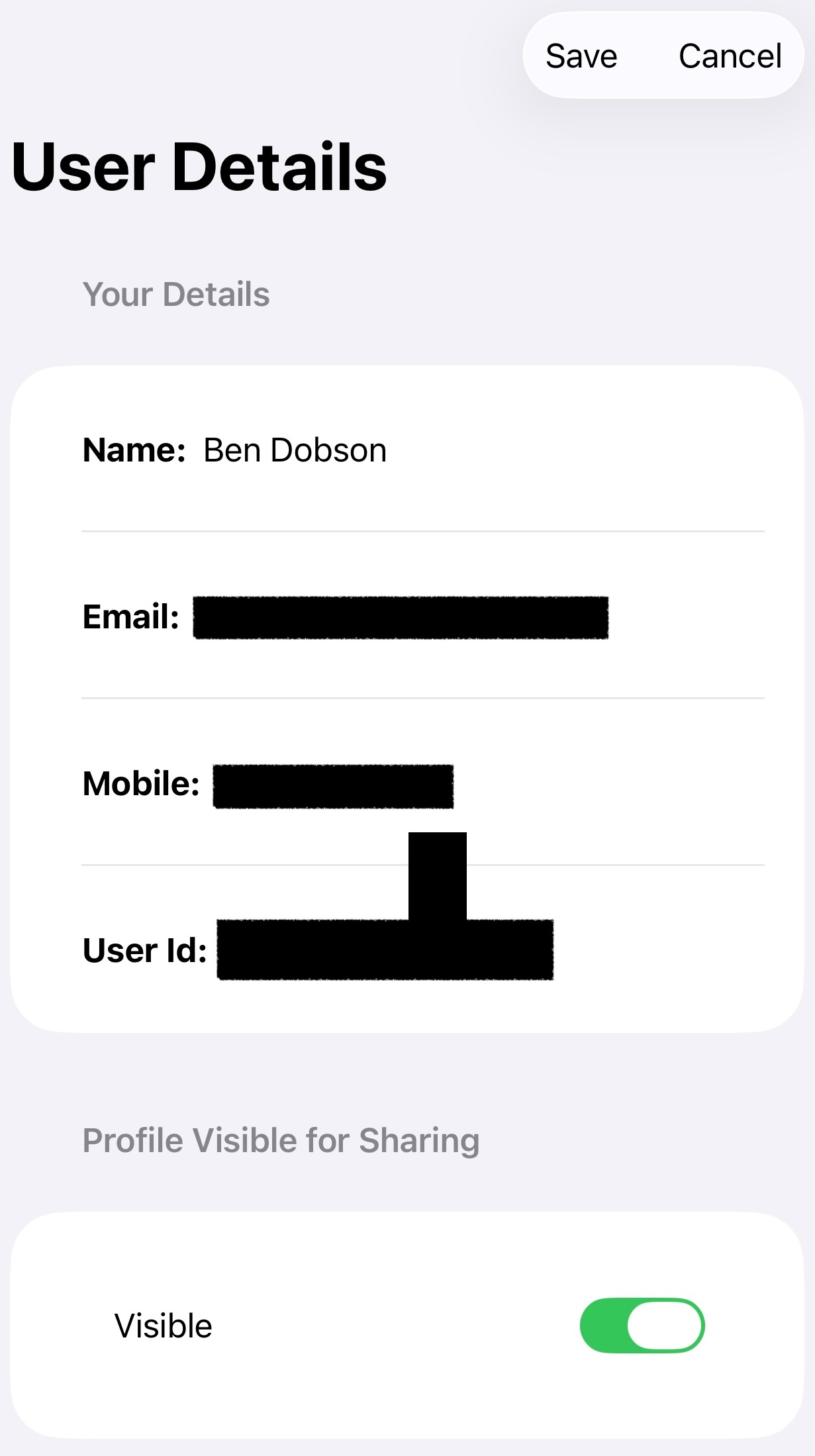
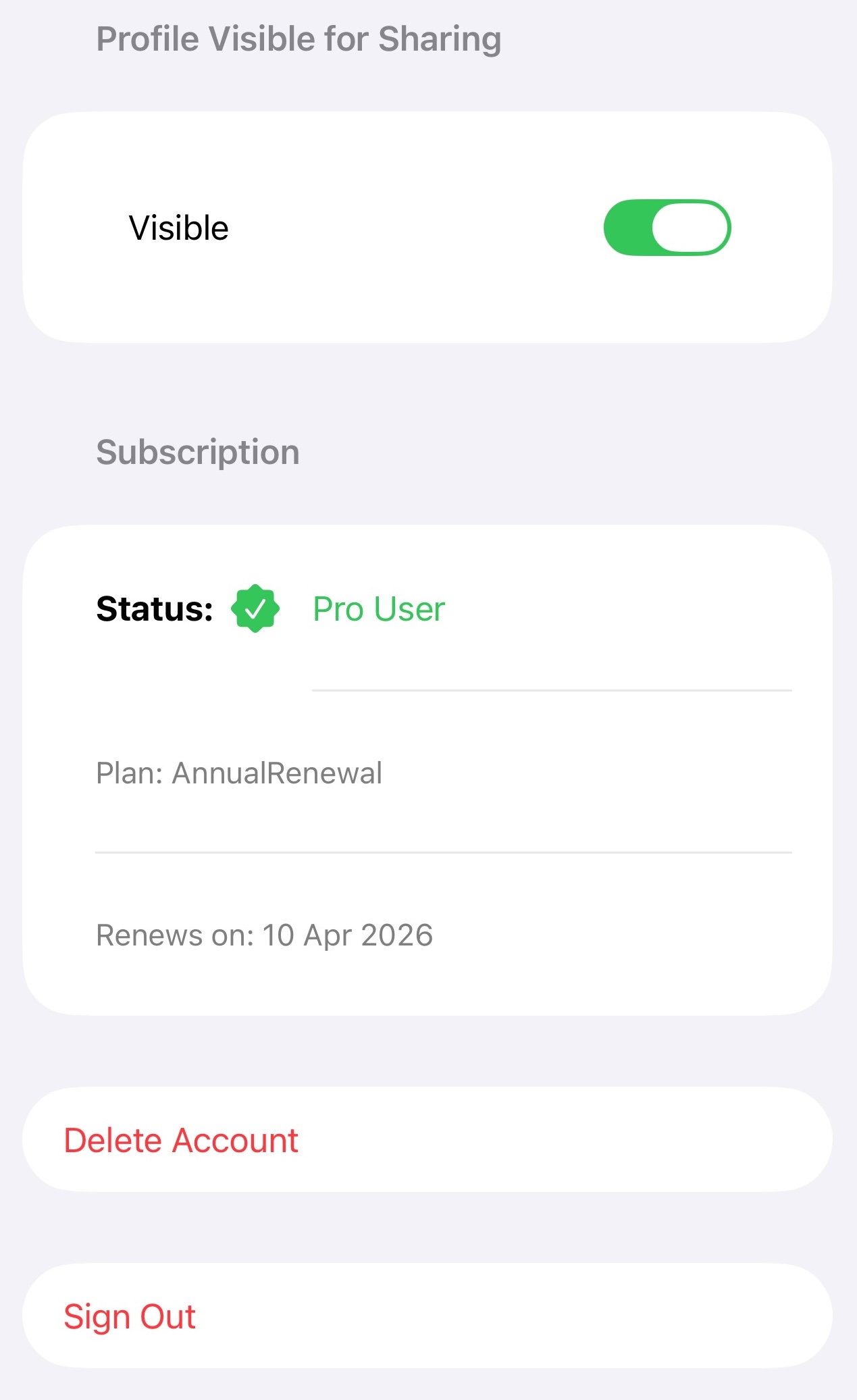
User registration is required to allow for the event to be shared with other support crew. User visibility can be switched on to allow their User Id to be seen by other team members, to share event information with. The default visibility setting is off.
3 Create a New Event
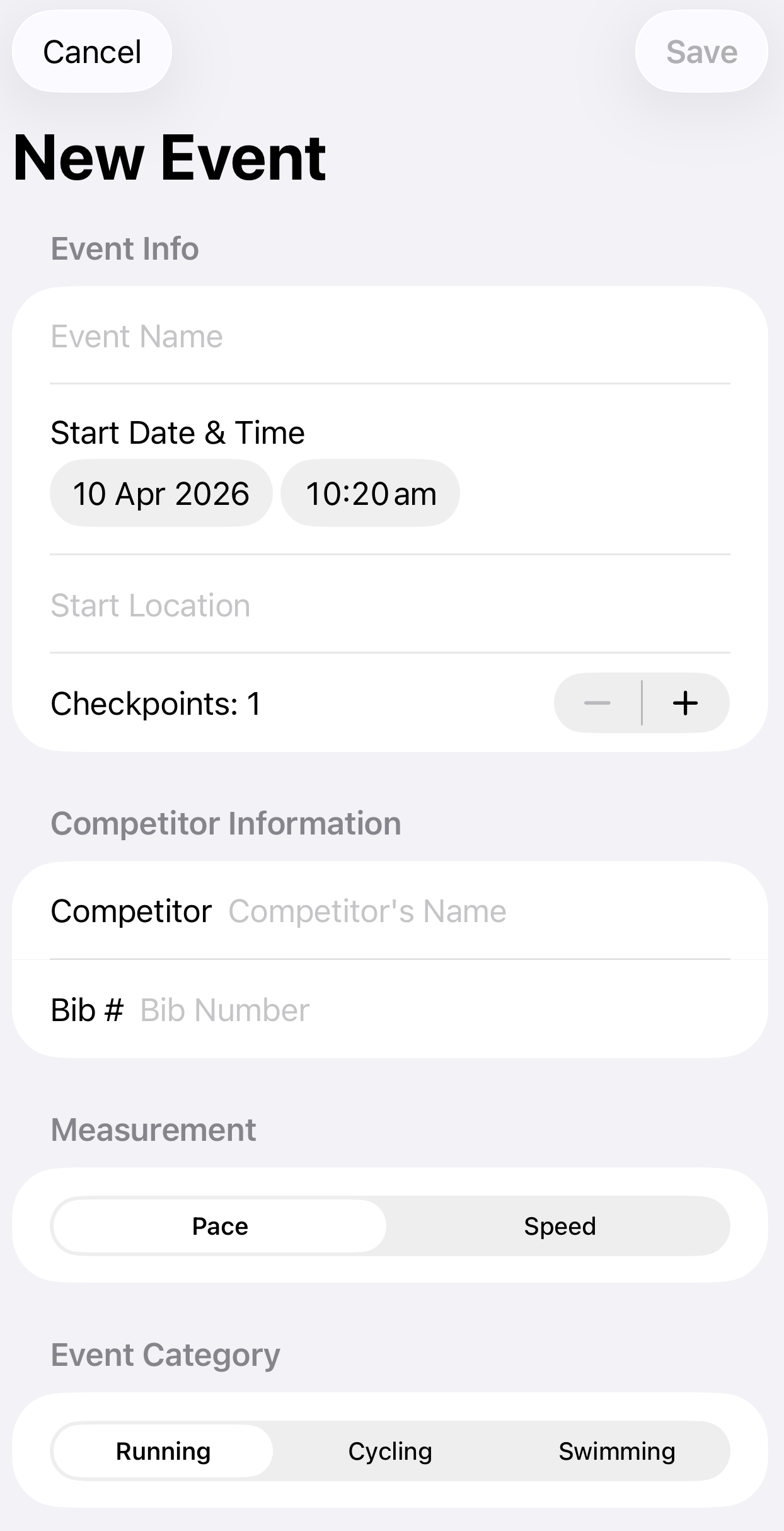
An event can be created from the Event List (Home). By adding the Start Location and Date, the sunrise and sunset is calculated. It should be noted that the Measurement: Pace or Speed, or the Category Type cannot be changed once the event has been created.
4 View & Edit the Event Details
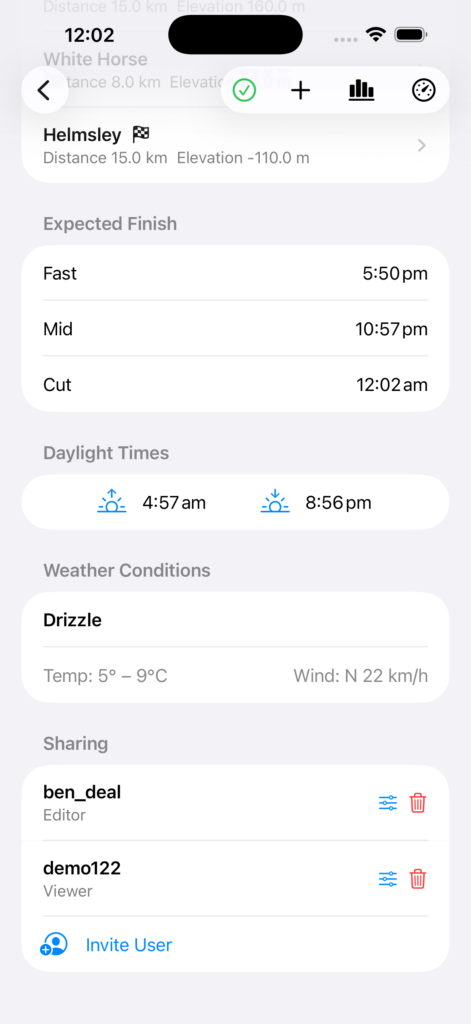
For each event there is an overview of the event and various fields can be set and edited.
- The participants name and bib number can be set/edited.
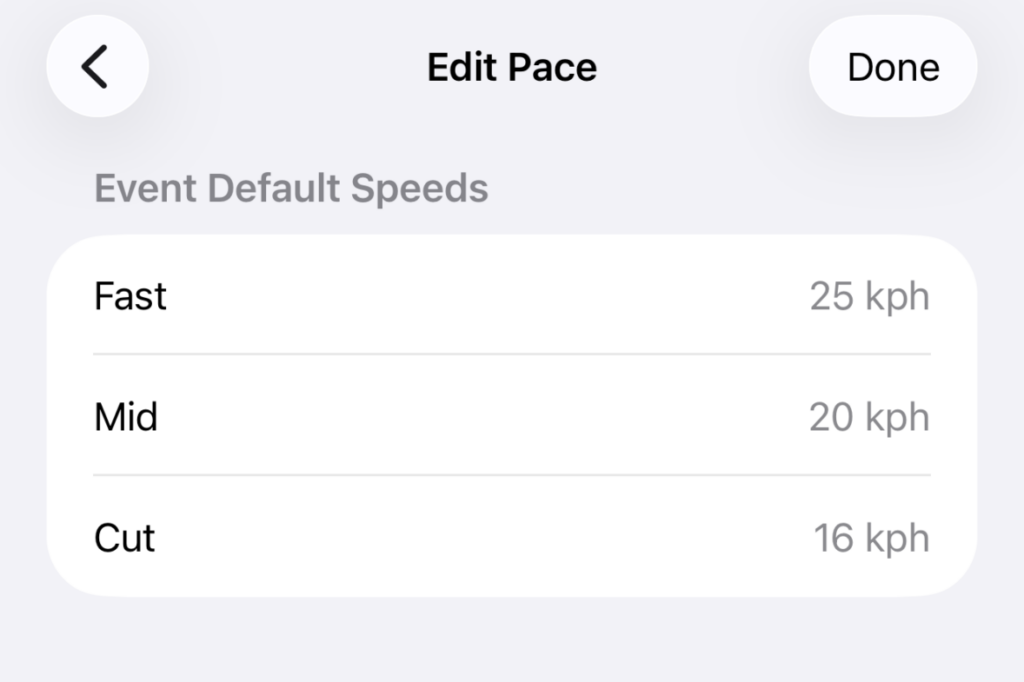
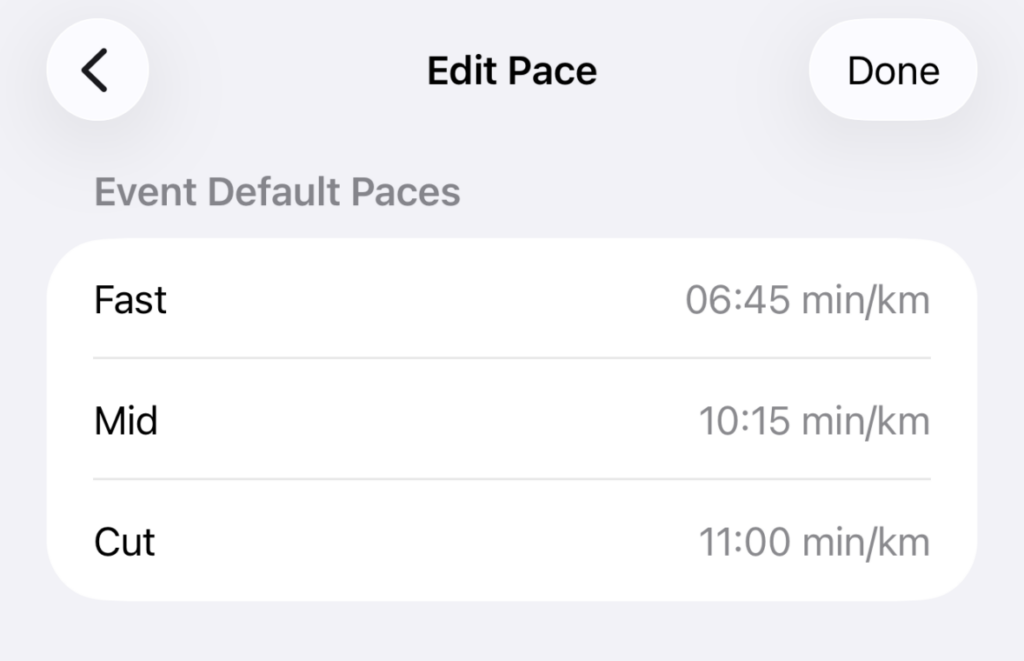
- The event pace can be viewed and edited.
- Additional Checkpoints can be added. They are defaulted as the last Checkpoint (the Finish).
- Additional support crew can be invited to the event. The idea being that if other members of support team are at another checkpoint they will be able to see updates in real time (Pro Subscription required)
4.1 Set & Edit the Event Pace
Three paces or speeds can be used: Fast, Mid and Slow (or cut)
4.2 Load the GPX Event File
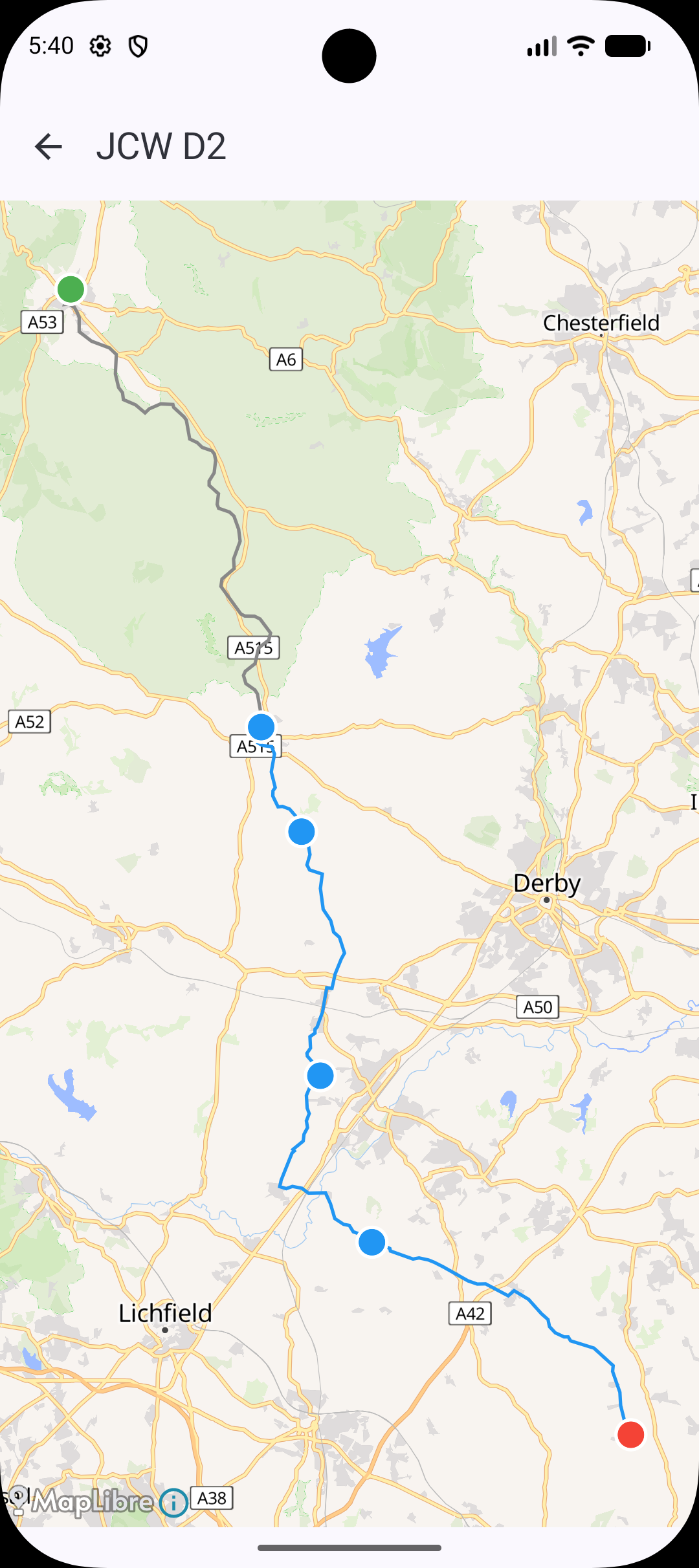
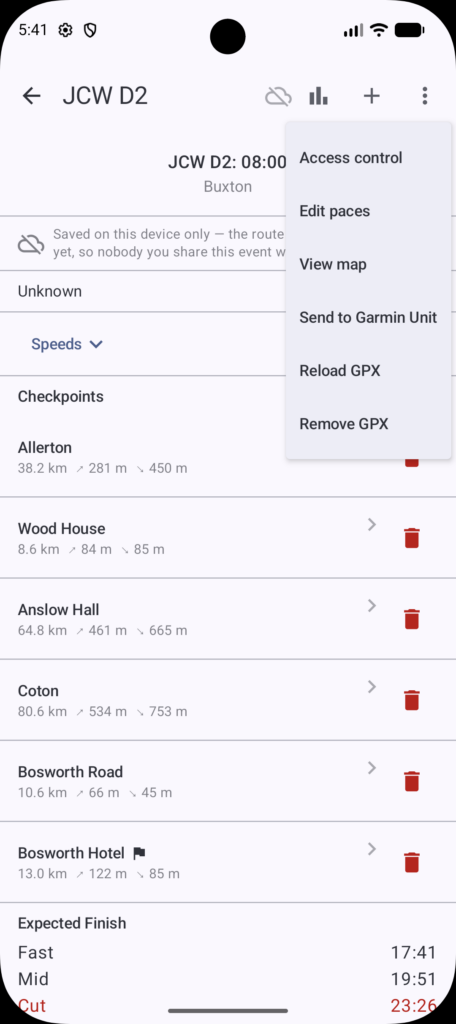
For subscribers, there is the ability to load a GPX file of the Event. With this loaded the route and checkpoints can be visualised. Having a loaded GPX, with the checkpoints recorded against it provides greater accuracy in
- The Inter-Checkpoint Distance and Elevation Gained and Lost, and
- The Predicted Arrival Time for Each Checkpoint and Estimated Finish Time.
4.3 Send Checkpoint Details to Garmin Device
For subscribers, users are able to send Checkpoint Details to compatible Garmin devices. See Garmin DataField (Section 7)
5 Set & Edit Individual Checkpoint Details
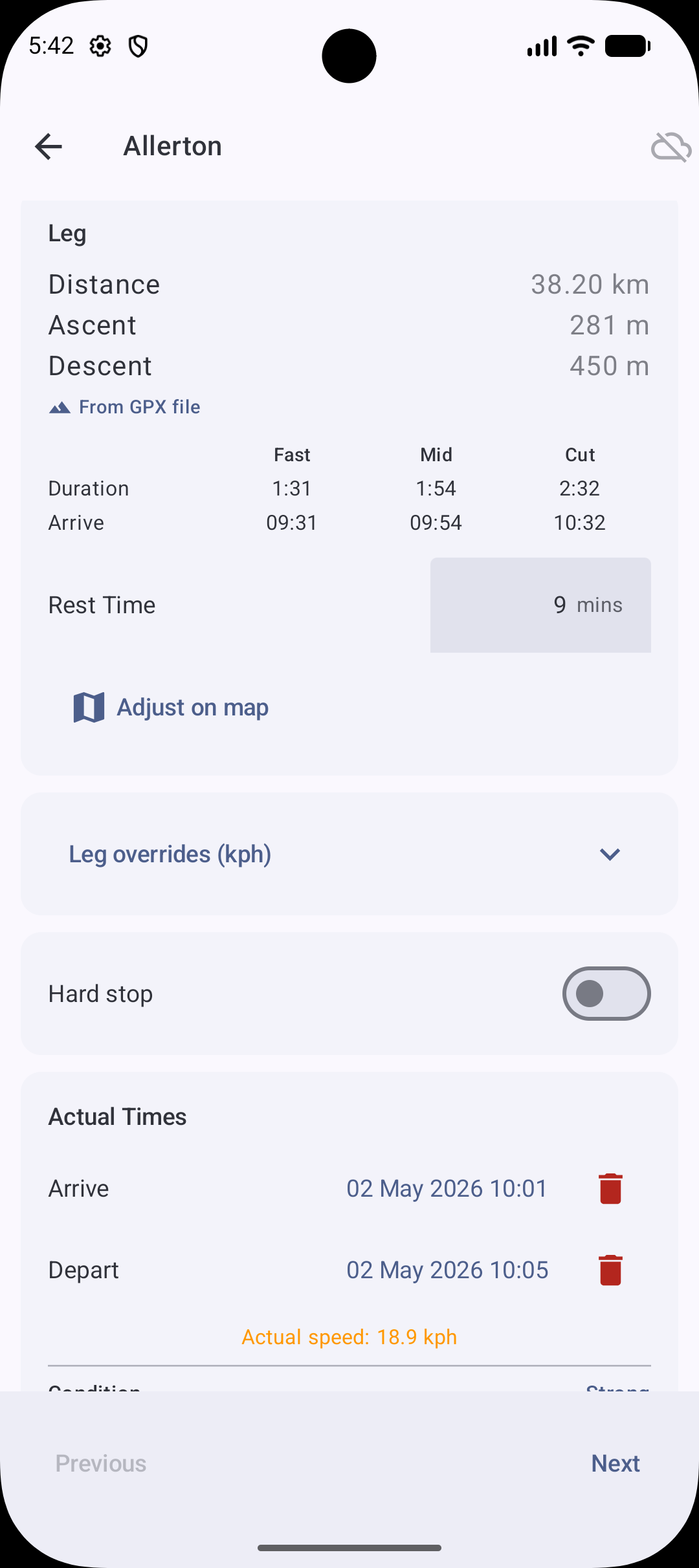
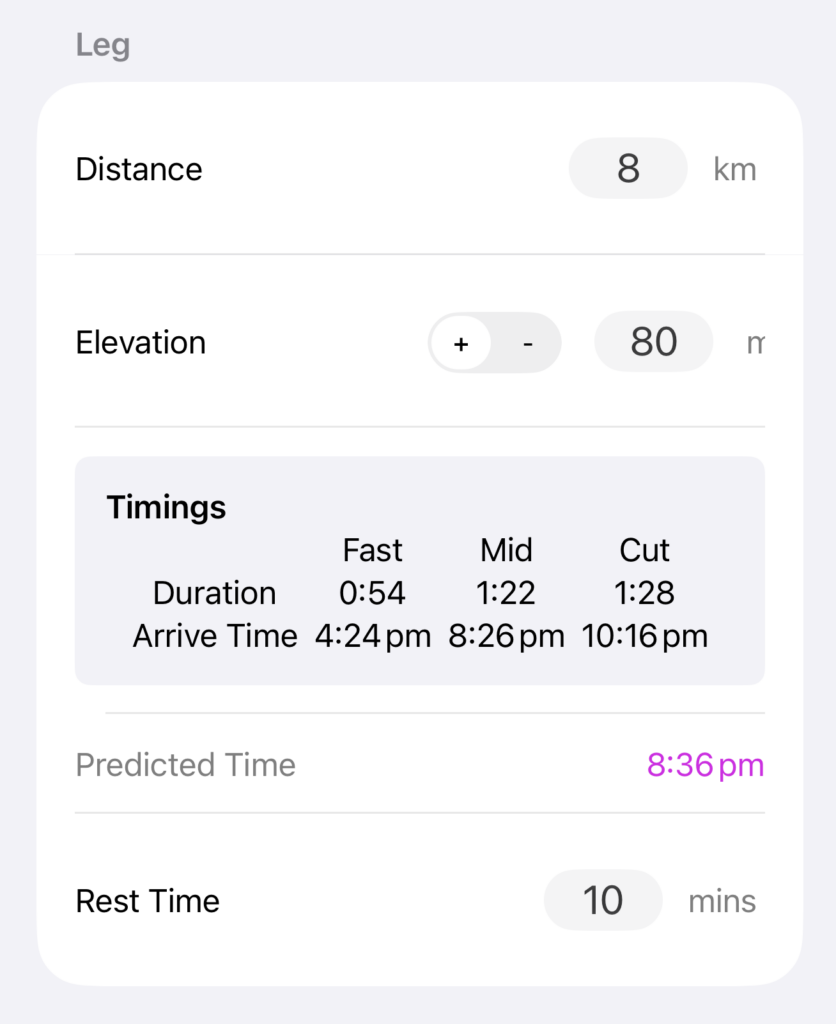
This is the main ‘long’ screen to define, set and edit each checkpoint.
- Drive Distance is used as an aid for awareness,
- Drive Time is used to calculate the arrival time at the checkpoint and the contingency between the support crew and the athlete arrival times,
- Leg Distance is used to calculate the arrival times: fastest, mid and slowest of the athlete,
- Leg Elevation provides a basis of the predicted arrival,
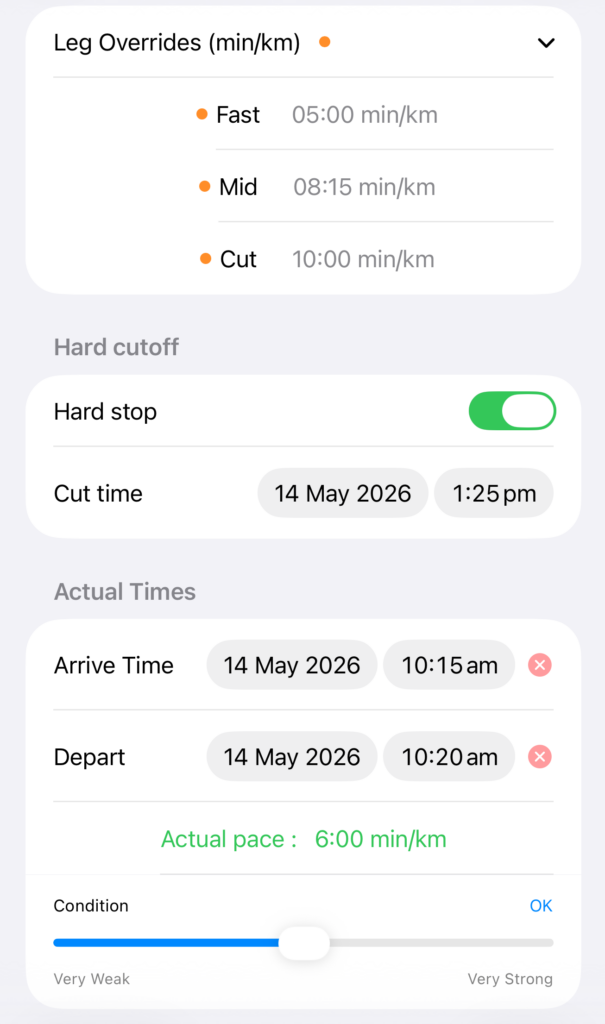
- That Leg’s Paces/Speed can be individually amended to allow for specific terrain or predicted environmental conditions, such as nighttime, rain, cold, heat or terrain. They initially default to the event’s pace/speed.
- The Actual Arrival and Departure Times can be set once the athlete has arrived and departed a checkpoint, along with their condition. Once these timings are set then all subsequent timings are updated. That leg’s actual pace/speed is also calculated and displayed, and coloured to show ahead or behind expected time/pace/speed,
- If the Checkpoint has a ‘Hard Stop’ or cut-off then this can be set, and any predicted arrival times that are outside that are highlighted red
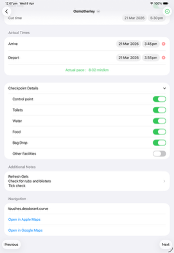
The Checkpoints Facilities can be identified, and any additional notes can be made, such as the athlete’s nutritional intake, or a change of socks or shoes, etc. If a W3W is used, then user can select to navigate to it.
For subscription users, the checkpoint location can be selected from the map of the GPX file. With the location selected from the map the distance, elevation lost and gained between checkpoints is automatically calculated. And subsequently the Predicted Arrival Time can be estimated more accurately. A What 3 Words location is generated and can be used to navigate to the checkpoint.
6 Charts
Once the leg distances, elevation profile and pace/speed have been entered the Elevation and Timing Charts can be viewed. These provide an easier visual assistance as to the competitor’s predicted versus actual performance.
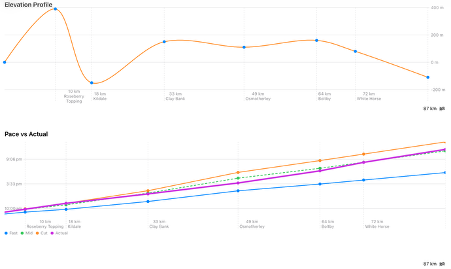
With GPX file loaded, that contains elevation data the Charts provide greater clarity as to the profile and pace/speed.
7 Garmin DataField
Once a Checkpoint has location information, and additional information, such as facilities and a cut-off time limit, this can be sent a compatible Garmin Device (See Garmin CIQ Event Checkpoint for details). With the DataField installed and set to the activity (such as Cycling), the DataField can display, for the next checkpoint, the:
- Distance remaining. Note this is straight-line distance
- Estimated arrival time. Calculated by a weighted algorithm of previous pace/speed and current pace/speed
- Facilities available and any notes made
- Duration until the cut-off, or the next checkpoint/finish that has a cut-off
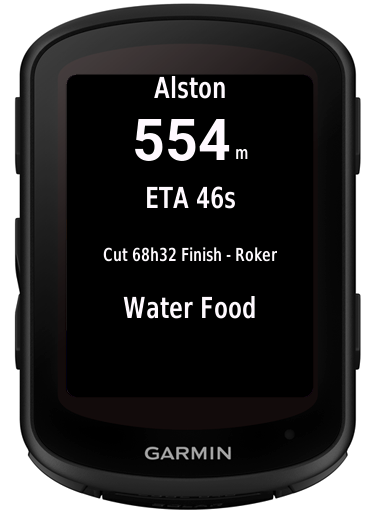
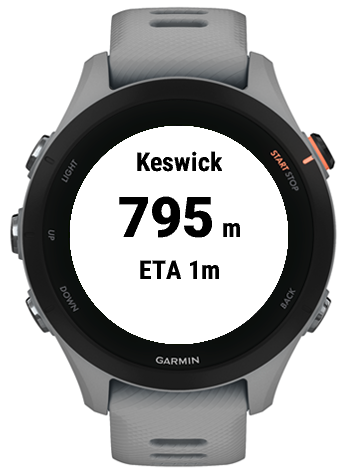
Once checkpoint information has been sent to the Garmin device, the DataField operates and calculates times and distances independently of the App.
8 About
On the About Screen you can get in touch, raise an issue. Please report your app version when reporting a bug.